Stints for Windows
A timer that knows which ticket you're on
Stints for Windows runs in the system tray. Using rules your team sets up, it recognises the ticket you have open and offers to start or switch the timer. It checks in every fifteen minutes and shows any time you haven't logged. Everything it sees stays on your PC.
In testing, and available on request
We're testing Stints for Windows with a small number of teams before making it available to everyone. If you'd like to try it, get in touch.
Ask for accessPrompts to start or switch
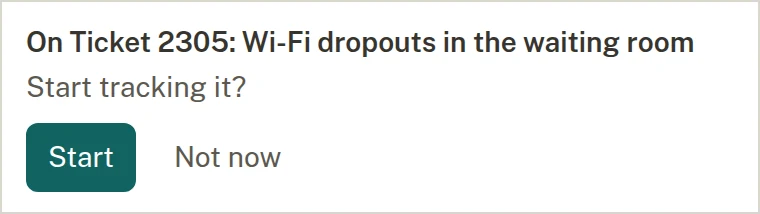
When you open a ticket, the Timer tab shows it with a Start button, or Switch if your timer is on another ticket. If you stay on the ticket for ten seconds, a small panel appears at the bottom right of the screen asking if you want to start tracking it.
Calls, email and other apps without a rule don't interrupt the ticket you're on. Only a different ticket does, and a quick look at one won't change your timer.
If you'd rather not be asked, turn on automatic switching. The panel tells you what changed and lets you undo it.
Regular check-ins
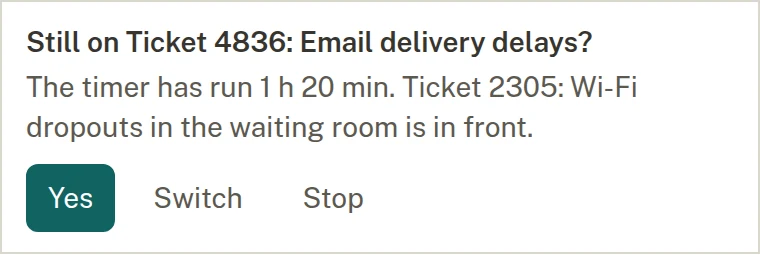
While your timer is running, Stints asks every fifteen minutes whether you're still on the same ticket, so a timer left running over lunch gets noticed quickly. You can change how often it asks, or turn it off.
If you lock your PC or step away, it asks when you're back whether to keep that time or discard it.
See what you haven't logged
The Today tab shows what you worked on next to what you logged, and highlights the time in between. Click a gap to log it, with the times, description and ticket number already filled in.
You can also get a reminder at a set time if you have unlogged time.
Rules
A rule matches an app and part of the window title, and sets the project, task, description and ticket for the time entry. If more than one rule matches, the first one is used. A new install has no rules until you add them.
| Application | Title pattern | Becomes |
|---|---|---|
chrome | #(\d+) | Ticket $1 in Zendesk, linked to the ticket's address |
3CXPhone | any title | Phone call, project Support, task Phone |
outlook | any title | Email and admin |
-
From the window in front
Open a ticket and press the button. The new rule fills in the app, the title and the ticket number for you to check and save.
-
From a template
Start from a template for Jira, Zendesk, ticket numbers like #1234, a softphone or Outlook, then add your own details.
-
From a teammate
Export your rules to a file and send it to your team. When they import it, the rules are matched to your projects by name.
You can test a rule as you write it, against the window you have open or a title you paste in. By default, only the matched part of a title, such as the ticket number, is saved.
Privacy
Stints for Windows helps people log their own time. It doesn't report on them, and administrators can't change that.
- Window titles and application names stay on the PC. Screenshots, keystrokes and mouse activity aren't collected at all.
- Titles are stored encrypted, with the key kept in Windows Credential Manager.
- Nothing is recorded until the person turns it on, and they can pause or turn it off from the tray.
- Password managers and the lock screen are never recorded, and you can add other apps to that list.
- Activity is deleted after 14 days by default (you can choose 1 to 90), or straight away with Delete all activity.
- Only the person at the PC can see their activity. Managers can't view or export it, and it isn't synced anywhere.
- Time entries use the description from your rule rather than the full window title, unless you change it.
Also in the tray
-
Quick starts
Your own buttons, such as Phone call, Ticket, Chat or Admin, each with an optional keyboard shortcut.
-
Keyboard shortcut
Press Ctrl+Alt+S in any app to start or stop the timer.
-
Clock in and out
It reminds you to clock in when you start using your PC, and to clock out at the end of the day.
-
Works offline
Keep working without a connection. Your changes sync when you're back online.
-
Secure sign-in
You sign in through your browser. The app's access is stored in Windows Credential Manager, and you can remove it from Stints at any time.
-
Automatic updates
Updates install without administrator rights. You can back up your rules and quick starts to move to a new PC.
Try Stints
New workspaces get a 14-day free trial with every feature and no card needed. After that, the Free plan covers up to 3 people, or you can choose a paid plan.