Time tracking for service desks and MSPs
Track time against the tickets you work on
Stints is time tracking for support and service teams. Start the timer from the ticket you're working on, in Zendesk, Freshdesk, Jira and the other tools you use, and Slack reminds anyone who forgot. Team leads get accurate timesheets, invoices and reports without chasing people for them.
Free for up to 3 people. 14-day free trial with every feature, no card needed.
Why support time goes missing
Support staff jump between tickets, calls and chats all day. By the end of the day it's hard to remember where the time went, so a lot of it gets logged as "admin". Clients get under-billed, contract hours are wrong, and team leads spend time chasing timesheets.
Most time trackers rely on people remembering to press Start. Stints puts the Start button on the ticket itself and sends a Slack message when a timer is forgotten. You choose what gets logged, and your team lead only sees the time entries.
The web app
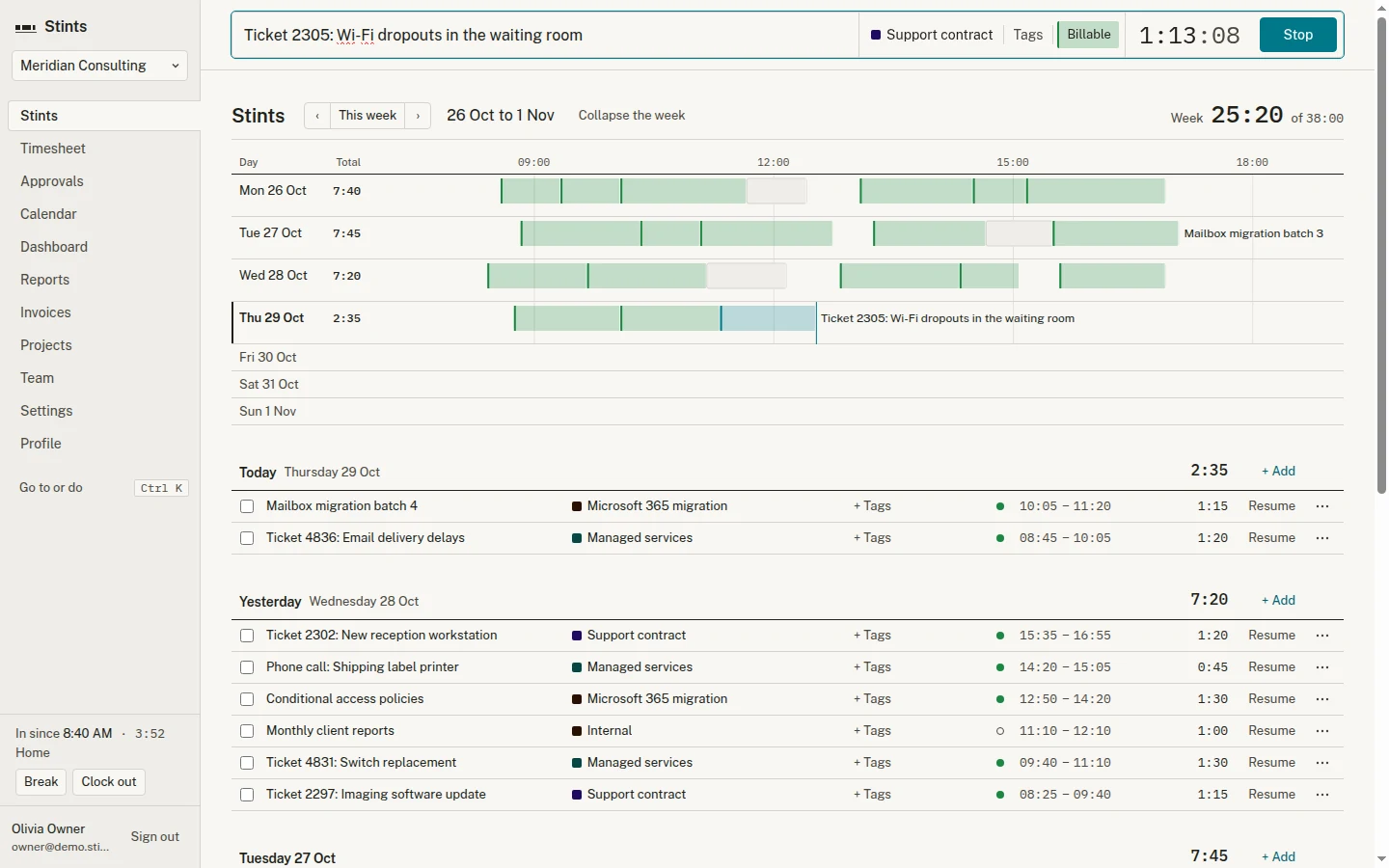
Your week at a glance, with the running timer at the top and every entry below it.
How it works
- 01
Start from the ticket
Open a ticket in Zendesk, Freshdesk, Jira or HubSpot and choose Start timer on it. The entry is named after the ticket, and it's the same timer in the web app, the browser extension and Jira.
- 02
Get a nudge when you forget
Stints sends a Slack message when nobody has started a timer by mid-morning, when one has run for hours, or when it's still going after the working day, with a button to stop it.
- 03
Approve and invoice
People submit their week, team leads approve it, and approved time is locked. Invoices and reports come straight from the approved time.
Activity stays private
Stints tracks time, not people. What Stints for Windows sees stays on that PC, with window titles encrypted, and it records nothing until the person turns it on. Window titles, app names and screenshots are never sent to Stints, and managers can't see anyone's activity. Stints only receives the time entries people choose to log.
Everything else in Stints
Your support team and your accounts team can work from the same system.
-
Timer and manual entries
Start and stop the timer from the web, the browser extension, a Jira issue or a keyboard shortcut, or add time by hand.
-
Projects, clients, tasks, tags
Organise time by client, project, task and tag. Private projects and groups control who can see what.
-
Timesheets and approvals
Weekly or fortnightly timesheets that team leads approve. Approved time is locked.
-
Rates and invoicing
Billable and cost rates by project, person or task, and invoices made from tracked time.
-
Attendance
Clock in and out from the web, Windows or Slack, and compare time at work with time logged.
-
Reports and export
Summary, detailed and weekly reports by person, client, project and task. Export to CSV or share a link.
-
Jira and Slack
A timer on every Jira issue, worklog sync, and Slack reminders when a timer is left running.
-
API, webhooks and MCP
A documented REST API, webhooks, and an MCP connector for logging time through your AI assistant.
-
Stints for Windows
Recognises the ticket you have open and offers to start the timer, then shows time you didn't log. In testing, on request.
Moving from another tracker
You can import your existing time from a Clockify detailed report, or from any CSV file with a header row. Stints shows you a preview of every row before importing anything.
Try Stints
New workspaces get a 14-day free trial with every feature and no card needed. After that, the Free plan covers up to 3 people, or you can choose a paid plan.